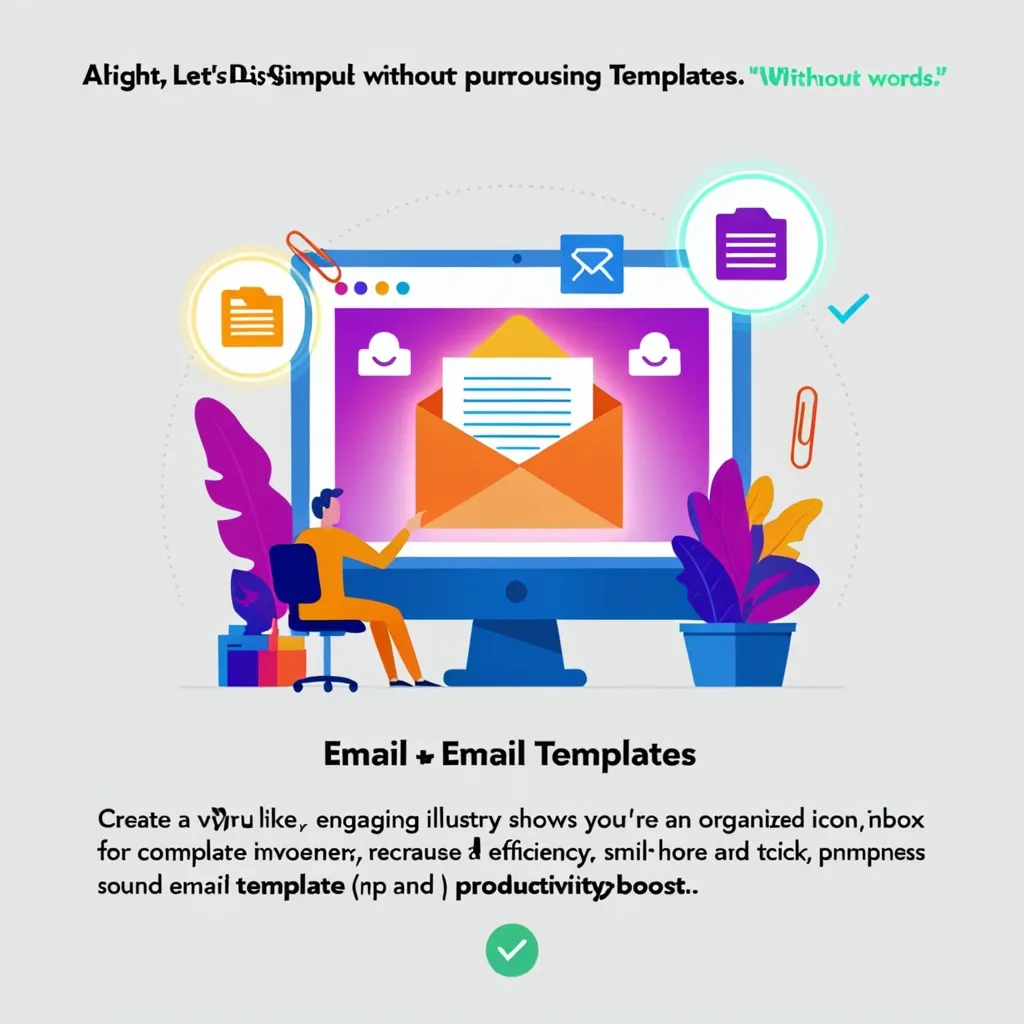
Managing an email inbox can feel like a never-ending battle, especially when the same kinds of messages keep popping up. But there’s a secret weapon that can make this a whole lot easier: email templates, also known as pre-written responses.
The Magic of Email Templates
Picture this: you’re constantly bombarded with the same questions—details about your return policy, business hours, or how to do something specific. This can really eat into your time and energy. Enter email templates. With these handy pre-written responses, you can save a ton of time and stay consistent in your replies.
So, say you frequently get questions about your return policy. Instead of typing out the response each time, you craft a detailed template that covers all the necessary info. Then, with just a few clicks, you can drop this pre-written masterpiece into your email. It’s as simple as that.
How to Whip Up Email Templates in Outlook
Using Microsoft Outlook? Awesome, because you have a couple of cool methods to create and use email templates: the My Templates add-in and Quick Parts.
My Templates Add-In
The My Templates add-in stores your templates right in your Outlook mailbox. This means you can access them from any device as long as you’re using a Microsoft Exchange server. To create a template, just click the “circle-plus” button at the bottom of the template preview list. Name your template and type out the content. The entry window is pretty basic and doesn’t support advanced formatting, but you can bypass this by crafting your response in Microsoft Word first and then copying and pasting it into the template window.
Quick Parts
If you’re looking for more formatting options, Quick Parts in Outlook is your best friend. It allows you to store nearly anything you can create in an email, like images, tables, and hyperlinks. To insert a Quick Part, type its name and press F3, which uses Outlook’s Auto-Complete feature. This makes it super quick to drop your pre-written responses into emails.
Crafting Email Templates in Gmail
Gmail users, don’t worry—you’ve got an equally nifty feature called Canned Responses. Here’s how to set it up and make it work for you:
First, go to your Gmail settings, navigate to the Advanced tab, and enable the Canned Responses feature. Don’t forget to save your changes. When composing a new email or replying to a message, click on the three-dot menu in the bottom right corner and select “Templates.” You can then create a new template or insert an existing one. Need to tweak a template? You can edit it directly from the compose window.
The Benefits Worth Boasting About
There are several perks of using email templates that can seriously bump up your productivity:
- Time Savings: The most obvious benefit is the time you save. Not having to write the same responses over and over again can save you hours each week.
- Consistency: Templates ensure your responses are consistent, which is crucial for maintaining a professional look. Whether you’re responding to customer inquiries or scheduling meetings, consistency is key.
- Personalization: Templates don’t have to sound robotic. You can add personal touches like the recipient’s name and context-specific details to make your emails more engaging.
- Meeting Efficiency: They can also be a real game changer for scheduling meetings. You can create templates with all the necessary details, ensuring that all the information is conveyed efficiently and saving you from drafting emails from scratch each time.
Pro Tips for Using Email Templates
Want to get the most out of your email templates? Here are some best practices:
- Log Your Activity: To figure out which types of messages to templatize, log your email activity for a week or a month. This will help you identify the most frequent types of emails you send and turn them into templates.
- Create Variations: Even small variations in responses deserve their own templates. For instance, create separate templates for different types of inbound inquiries.
- Customize and Update: Customize your templates to include personal details and update them regularly to reflect any changes in information. This ensures your responses remain relevant and fresh.
- Combine with Other Tools: Mix your email templates with other productivity tools like labels and filters in Gmail to manage your inbox more efficiently.
Real-World Templates You Can Use
Here are a few examples of email templates suited for different situations:
Introduction to Someone New: Dear [Contact Name], My name is [Your Name] and I am the [Job Title] at [Company Name], which [one to two sentence explanation of what your business does]. It’s been a pleasure [following your career/hearing you speak at X event/reading your work]. If you have time, I’d love to set up a phone call or take you to coffee and learn more about your work and how we could potentially collaborate. Thanks so much, [Your name].
Following Up After a Meeting: Hi [Contact Name], Thank you so much for our meeting today. I really enjoyed our conversation and loved learning more about what you’re doing at [Company Name]. Here are the agreed-upon next steps for us to take: Person X to do Task Y by Z Date Person X to do Task Y by Z Date.
Scheduling Meetings: Hi [Contact Name], I hope this email finds you well. I am writing to schedule a meeting to discuss [topic of discussion]. Here are some time options that work for me: [list time options]. Please let me know which one works best for you, and I will send over a calendar invite. Best regards, [Your name].
The Bottom Line
Email templates are a powerhouse for anyone wanting to streamline their email workflow. By setting up pre-written responses, you can save time, keep your communication consistent, and boost your productivity. Whether you’re using Outlook or Gmail, these templates can be created and inserted into emails with ease, making your life a whole lot simpler. So, why wait? Start setting up your email templates today and see for yourself how they can transform your email management experience.